

⭐ Our Pick: Apple Pencil Pro — 4.5/5
Best for: Artists, designers, and serious note-takers with a compatible recent iPad who want the most capable stylus — squeeze gestures, barrel roll, haptics, and Find My, all in one pen.
Skip if: You own an older iPad (compatibility is narrow), you only take occasional notes (cheaper pens do that job fine), or pressure sensitivity isn’t something you’ll ever use.
As an Amazon Associate we earn from qualifying purchases. How we research.
Best Stylus Pens for iPad: Apple Pencil & Alternatives (2026)
The right stylus turns an iPad from a content machine into a sketchbook, a lecture notebook, or a markup station. The wrong one — the wrong Apple Pencil generation, or a cheap pen that stutters — turns every stroke into an annoyance. With four Apple Pencil variants and a crowded field of third-party alternatives, most buyers’ real question is simpler than it looks: which pen actually works with my iPad?
We compared 6 leading stylus pens for iPad — specs, compatibility lists, and what verified owners say after weeks of daily writing and drawing. Compatibility was verified against current Amazon listings (October 2026).
The short answer: the Apple Pencil Pro wins for anyone with a compatible recent iPad — it’s the only pen with squeeze gestures, barrel roll, haptic feedback, and Find My. If your iPad is older, the Apple Pencil (2nd generation) is the safe premium pick; the Apple Pencil (USB-C) is Apple’s budget-friendly official option. For students who want something that survives being dropped, the Logitech Crayon remains the toughest classroom pick, while the ZAGG Pro Stylus 2 and Adonit Note+ offer real drawing features for less.
As an Amazon Associate we earn from qualifying purchases.
Quick Comparison of the Best Stylus
| Product | Best for | Key spec | Price tier | Our rating |
|---|---|---|---|---|
| Apple Pencil Pro | Artists & power users | Squeeze, barrel roll, haptics, Find My | Premium | 4.5/5 |
| Apple Pencil (2nd Gen) | Older compatible iPads | Pressure + tilt, double-tap, magnetic charge | Mid-range | 4.5/5 |
| Apple Pencil (USB-C) | Budget official pick | Tilt, hover, USB-C charge, magnetic attach | Budget | 4/5 |
| Logitech Crayon | Students & kids | Drop-proof design, no pairing, tilt support | Budget | 4/5 |
| ZAGG Pro Stylus 2 | Style + versatility | Dual tips, wireless Qi charging, tilt | Budget | 4/5 |
| Adonit Note+ | Value drawing pen | 2,048-level pressure, tilt, shortcut buttons | Budget | 3.5/5 |
Prices change frequently — click through to see the current price.
Detailed Stylus Reviews
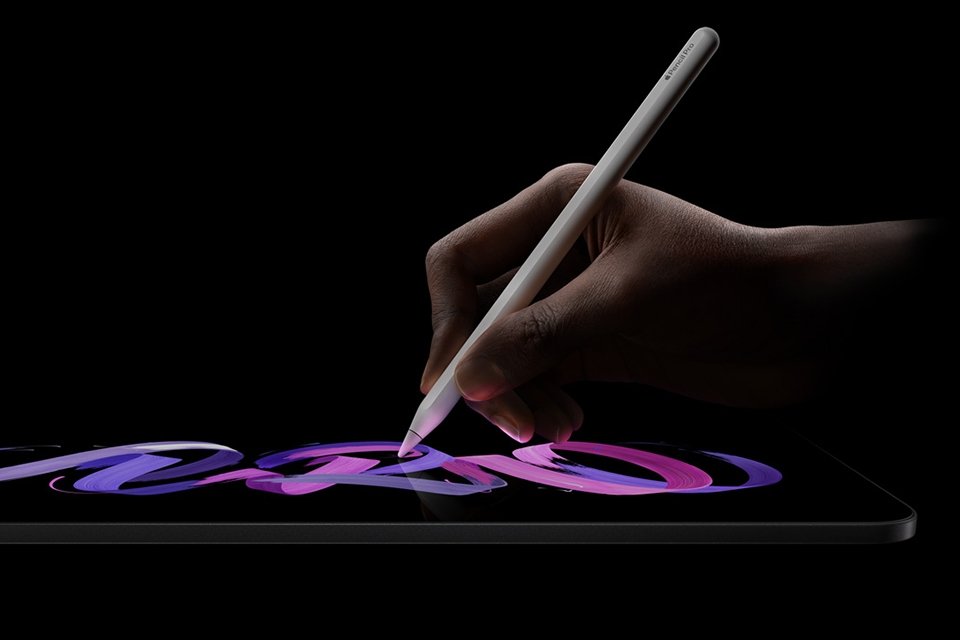
Apple Pencil Pro — Our Top Pick
This is Apple’s flagship stylus and the only pen in the lineup with the full feature set: a squeeze gesture that opens a tool palette without leaving your canvas, barrel roll (a gyroscope that rotates shaped brushes like a real pen), haptic feedback that confirms actions with a tiny tap, and Find My support so a lost pen shows up on a map. If you draw, paint, or annotate professionally on a recent iPad, nothing else matches it.
- Compatibility: iPad Pro (M4/M5), iPad Air (M2/M3), iPad mini (A17 Pro) — check your model before buying
- Exclusive features: Squeeze gesture, barrel roll, haptic feedback, Find My
- Core specs: Pixel-perfect precision, tilt and pressure sensitivity, low latency, hover preview on supported iPads
- Charging: Magnetic attach, wireless pairing and charging
- Design: Flat edge, matte finish, 20.5 g weight
Pros: The most capable iPad stylus available — no alternative offers barrel roll or haptics; Find My genuinely solves the “lost pen” problem; hover preview is a real workflow upgrade for artists; magnetic charging means it’s always topped up; seamless pairing with zero setup.
Cons: Narrow compatibility — useless on older iPads, which many buyers discover too late; premium price tier; no eraser end; some owners report it’s easy to lose if your iPad case covers the magnetic edge.
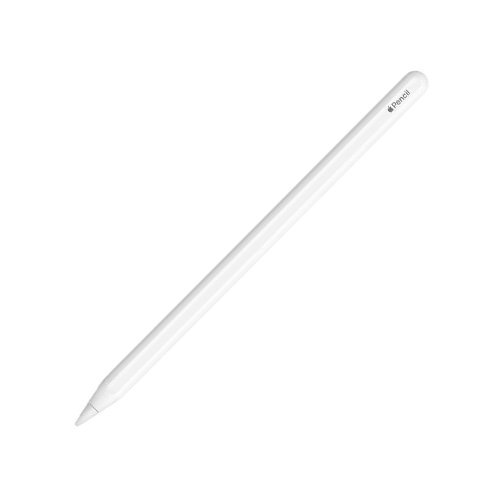
Apple Pencil (2nd Generation) — Best for Older Compatible iPads
Before the Pro existed, this was the top Apple stylus — and for owners of 2018–2022 iPad Pro, iPad Air 4/5, and iPad mini 6 models, it still is. It offers the full artist feature set (pressure and tilt, double-tap to switch tools, Apple Pencil hover on supported Pro models) with magnetic wireless charging. It’s the right pick if your iPad predates the M4/M2/M3 generation the Pro requires.
- Compatibility: iPad Pro 12.9″ (3rd–6th gen), iPad Pro 11″ (1st–4th gen), iPad Air (4th/5th gen), iPad mini (6th gen)
- Core specs: Pixel-perfect precision, tilt and pressure sensitivity, low latency
- Shortcuts: Double-tap on the flat edge switches tools
- Charging: Magnetic attach, wireless pairing and charging
- Design: Flat edge, matte finish
Pros: Full pressure sensitivity and hover — the complete drawing experience on compatible iPads; magnetic charging is genuinely convenient; huge owner base means replacement tips and cases are everywhere; often discounted below the Pro; no app-pairing headaches.
Cons: Doesn’t work with the newest iPads (Apple moved on); no Find My, no squeeze, no barrel roll; double-tap can trigger accidentally in some grips; glossy models show fingerprints; at its list price it’s close to the Pro, so buy it on sale.
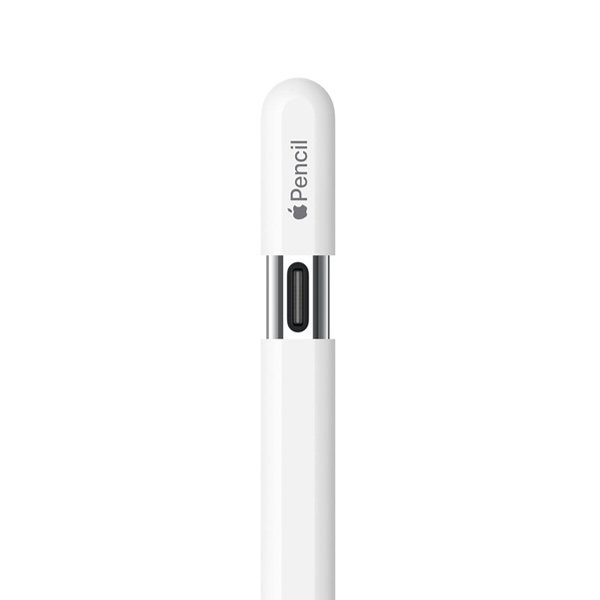
Apple Pencil (USB-C) — Best Budget Official Pick
Apple’s cheapest first-party stylus trades pressure sensitivity for affordability — and for note-takers, that’s a fair trade. It still has tilt sensitivity (so shading works), low latency, magnetic attach for storage, and hover preview on supported iPads. It charges over USB-C via a sliding cap, which is less elegant than magnetic charging but perfectly functional.
- Compatibility: Broad — most iPads with USB-C, including iPad 10th gen, Air 4/5, mini 6, Pro models
- Core specs: Pixel-perfect precision, tilt sensitivity, low latency, hover support
- Missing: Pressure sensitivity, wireless charging, double-tap
- Charging: USB-C port under sliding cap; magnetically attaches for storage only
- Price tier: Budget (cheapest Apple stylus)
Pros: Official Apple pen at the lowest price point; broad compatibility across USB-C iPads; tilt shading works fine for highlighting and sketching; hover preview included; USB-C charging means any cable works.
Cons: No pressure sensitivity — a real limitation for digital artists; doesn’t charge magnetically, so you must remember to plug it in; the sliding cap is small and easy to misplace; not a substitute for the Pro or 2nd gen if you draw seriously.
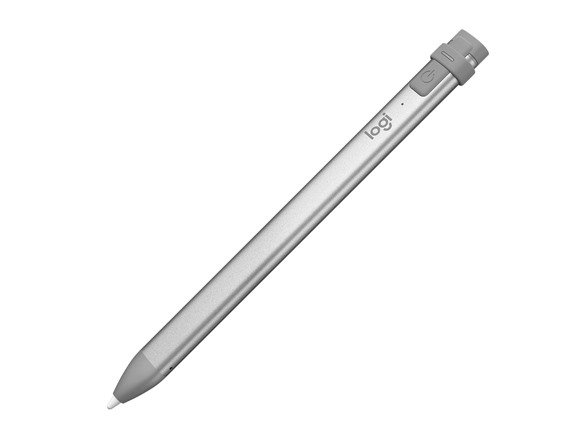
Logitech Crayon — Best for Students & Kids
The Crayon uses actual Apple Pencil technology under the hood but is built like classroom equipment: a flat, anti-roll body, aluminum construction, and a smart tip that adjusts line weight with tilt. It connects instantly with no pairing — just turn it on and write — which makes it ideal for shared iPads, schools, and kids. The USB-C version covers all modern iPads.
- Compatibility: USB-C model works with iPad models with USB-C ports (2018 and later)
- Core specs: Apple Pencil technology, tilt-sensitive smart tip, palm rejection, low latency
- Battery: Up to 7 hours per charge; fast USB-C charging (2 min ≈ 30 min use, per Logitech)
- Design: Flat anti-roll body, drop-resistant; no pressure sensitivity
- Pairing: None required — works instantly
Pros: Tough enough for kids and backpacks; no pairing means it works on any compatible iPad in seconds; palm rejection and tilt are genuinely good; priced below Apple’s pens; flat design never rolls off the desk.
Cons: No pressure sensitivity, so artists should skip it; shorter battery life than Apple’s pens (7 hours); thicker body feels less like a pen; some owners find the power button placement awkward; it’s not magnetic, so storage is a small hassle.
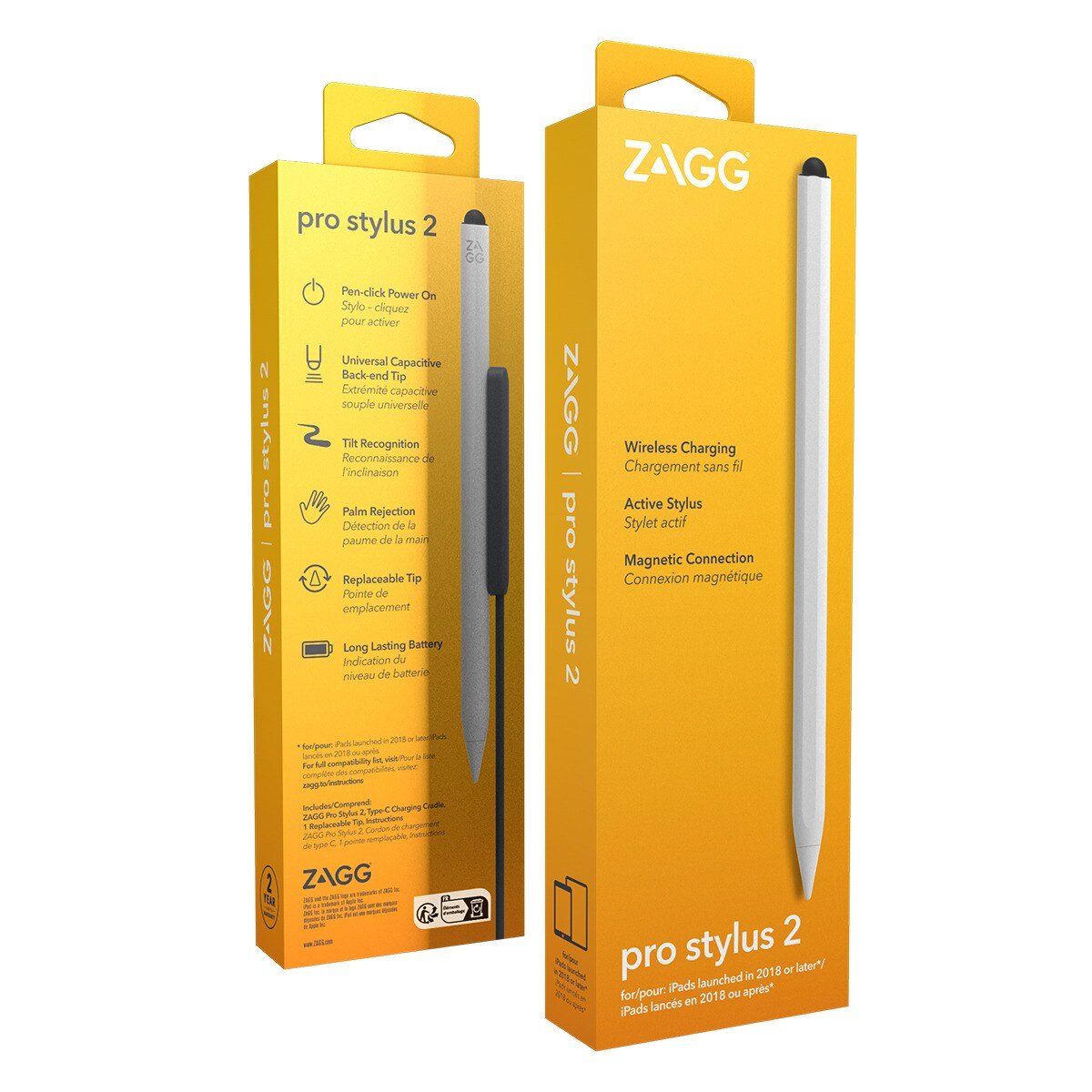
ZAGG Pro Stylus 2 — Best for Style & Versatility
ZAGG’s pen stands out with a dual-tip design: an active fine tip for drawing and writing, and a capacitive back-end tip for scrolling and navigation. It charges wirelessly (any Qi charger or the included magnetic cradle), comes in several colors, and offers tilt recognition plus palm rejection. A solid pick for note-takers who want something a bit different from Apple’s look.
- Compatibility: iPads from 2018 onward, including iPad Air (M2)
- Tips: Active fine tip (drawing) + capacitive rear tip (scrolling/navigation)
- Charging: Wireless Qi charging + included magnetic charging cradle; ~6.5-hour battery
- Features: Tilt recognition, palm rejection, Bluetooth pairing, replaceable tip included
- Colors: Available in multiple colors (Blue, Pink, Gray, Yellow, White)
Pros: Dual tips are genuinely useful — scroll with one end, draw with the other; wireless charging is convenient; works with Apple Pencil-compatible apps; colorful options Apple doesn’t offer; competitive price for the feature set.
Cons: No pressure sensitivity; battery life (6.5 hours) is the shortest here; requires the charging cradle or a Qi pad you may not own; Bluetooth pairing adds a step the Crayon skips; some owners report the capacitive end can register accidental touches.
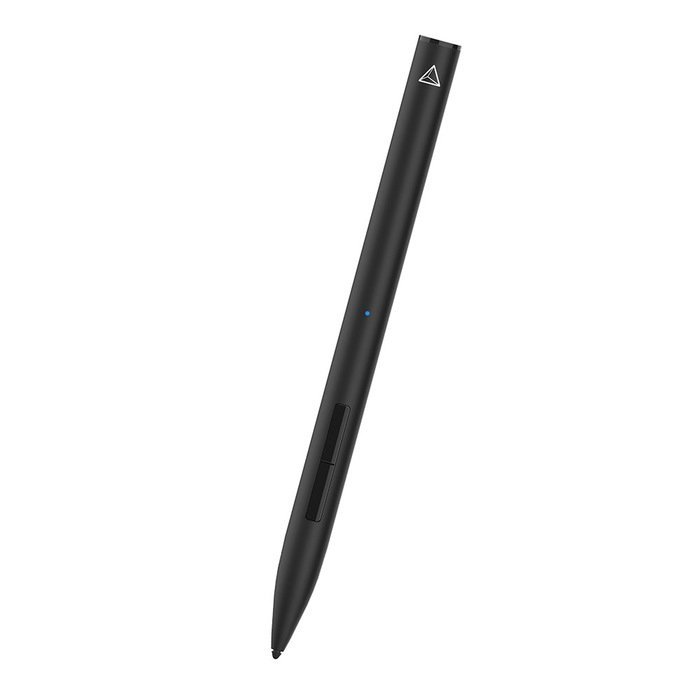
Adonit Note+ — Best Value Drawing Pen
The Note+ is the cheapest pen here with true pressure sensitivity — 2,048 levels of it — plus tilt support, palm rejection, and two programmable shortcut buttons (eraser, undo, and more). It’s a favorite of budget-conscious sketchers, though pressure features need Bluetooth pairing inside supported apps, which is fussier than Apple’s zero-setup approach.
- Compatibility: iPad Air 3/4, iPad mini 5/6, iPad 6th–9th gen, iPad Pro 11″/12.9″ (2018–2021)
- Pressure: 2,048 levels (requires Bluetooth pairing in supported apps)
- Features: Tilt support, palm rejection, 2 programmable buttons, replaceable tip
- Battery: ~10-hour battery life (per Adonit), USB-C charging cable included
- Price tier: Budget (lowest-priced pressure-sensitive pen here)
Pros: Real pressure sensitivity at a budget price — nothing else this cheap offers it; shortcut buttons are handy for undo/eraser; long battery life; replaceable tips included; works with Apple Notes and Markup without fuss.
Cons: Pressure sensitivity needs in-app Bluetooth pairing, which is unreliable in some apps; compatibility list is older — check your iPad model carefully; bulkier than Apple Pencils; build quality feels less premium; newer iPads aren’t supported.
How to Choose the Right iPad Stylus
Compatibility first, always. This is the single biggest buying mistake. Apple Pencils are famously picky — the Pencil Pro only works with the newest iPads, the 2nd gen only with 2018–2022 models, and the USB-C model with USB-C iPads. Before anything else, find your iPad model in Settings → General → About and match it against the compatibility list on the product page.
Do you need pressure sensitivity? If you draw, paint, or do calligraphy — yes, it’s non-negotiable, and it rules out the Apple Pencil (USB-C), Logitech Crayon, and ZAGG Pro Stylus 2. If you take notes, annotate PDFs, or sign documents, tilt alone is plenty, and you’ll save money skipping pressure.
Notes vs. art. Note-takers should prioritize comfort, battery life, and hassle-free pairing (Crayon wins on simplicity). Artists should prioritize latency, pressure levels, tilt, and app support (Apple Pencils win; Adonit is the budget workaround).
Charging style matters more than you think. Magnetic wireless charging (Pro, 2nd gen) means the pen is always charged when you grab it. USB-C charging (Pencil USB-C, Crayon, Adonit) means a cable and a dead pen at the worst moment. Wireless cradle (ZAGG) is in between. Be honest about your charging habits.
Who’s using it? For kids or shared classroom iPads, durability and instant no-pairing connection beat features — that’s the Crayon’s whole pitch. For your own daily driver, get the best Apple Pencil your iPad supports.
Palm rejection isn’t optional. Every pen here advertises it, but in practice third-party pens (especially the Adonit) can be fussier about it than Apple’s. If you rest your hand heavily while writing, stick with an Apple or Logitech pen.
Who Should Buy (and Who Should Skip) a Premium Stylus
Buy the Apple Pencil Pro if you:
- Own a compatible recent iPad (M4/M5 Pro, M2/M3 Air, A17 Pro mini) and draw or design regularly
- Want Find My so a lost pen doesn’t ruin your day
- Annotate documents or sketch professionally and want the fastest, most precise tool
Consider a cheaper alternative if you:
- Only take notes, highlight PDFs, or sign documents — the Apple Pencil (USB-C) or Logitech Crayon is plenty
- Buy for a child or a classroom — the Crayon’s durability and no-pairing design win
- Want pressure sensitivity on a tight budget — the Adonit Note+ is the only cheap route (with caveats)
Skip a stylus entirely if you: mostly type and never handwrite — a good pair of wireless earbuds and your iPad’s keyboard will serve you better, and a precision gaming mouse is the better precision tool for desktop work.
Frequently Asked Questions About Stylus
Which Apple Pencil works with my iPad?
It depends on your model. Apple Pencil Pro: iPad Pro M4/M5, iPad Air M2/M3, iPad mini A17 Pro. Apple Pencil (2nd gen): iPad Pro 2018–2022, iPad Air 4/5, iPad mini 6. Apple Pencil (USB-C): most USB-C iPads including iPad 10th gen. Check your model in Settings → General → About, then match it on Apple’s compatibility page (linked from each product listing).
Is the Apple Pencil Pro worth it over the 2nd generation?
If your iPad supports the Pro, yes for artists — squeeze, barrel roll, haptics, and Find My are meaningful upgrades. But if your iPad only supports the 2nd gen, that decision is made for you: the 2nd gen is still an excellent pen and often discounted.
Do third-party styluses work as well as the Apple Pencil?
For note-taking, nearly — the Logitech Crayon uses Apple Pencil technology and feels close. For drawing, no third-party pen fully matches Apple’s pressure sensitivity and latency, though the Adonit Note+ comes closest at its price. Expect more pairing fuss and occasional palm-rejection quirks.
Can I use these styluses with apps like Procreate and GoodNotes?
Yes — all Apple Pencils and the pens here work with Apple Pencil-compatible apps including Procreate, GoodNotes, and Notability. Note that some Adonit pressure features only activate inside apps that specifically support its Bluetooth pairing.
How long does the battery last on these pens?
Apple Pencils last roughly 12 hours of use and charge quickly via magnetic attach (about 15 seconds of charging gives ~30 minutes, per Apple). The Logitech Crayon runs about 7 hours, the ZAGG Pro Stylus 2 about 6.5 hours, and the Adonit Note+ up to 10 hours per Adonit’s specs. Real-world results vary with usage.
Do I need a screen protector with a stylus?
Not required, but many writers add a matte “paper-like” protector for friction that feels closer to paper. One caution: thick protectors can slightly reduce tip sensitivity on some pens, and they wear down tips faster — keep spare tips handy.
Final Verdict: Best Stylus
The Apple Pencil Pro is our pick for most buyers with a compatible iPad — it’s the only stylus with squeeze gestures, barrel roll, haptic feedback, and Find My, and for artists those aren’t gimmicks. Pair it with a good smartwatch and wireless earbuds and you have a genuinely portable creative studio.
If your iPad is a generation or two older, the Apple Pencil (2nd generation) gives you the full pressure-sensitive drawing experience for less. And if you just need a reliable note-taking pen — especially for students — the Logitech Crayon is the toughest, simplest option here.
As an Amazon Associate we earn from qualifying purchases. Prices and availability change frequently — see Amazon for the latest.
How we researched: We compared specifications from current Amazon listings (verified October 2026), compatibility information from Apple (apple.com/apple-pencil), and aggregated pros and cons from verified-purchase reviews and tech publications. Brand battery-life and feature claims are the manufacturers’ own marketing and were not independently verified by us. We did not receive free products from any brand. Last updated: October 13, 2026.

Pingback: Best Wireless Earbuds (2026): 6 Compared
Pingback: Best Bluetooth Trackers (2026): AirTag, Tile & More
Pingback: Best High-Speed 3D Printers (2026): 6 Compared
Pingback: Best 3D Printers for Home & Pros (2026): 7 Compared